
Give your client their own portal
Invite your client from the website’s Collaborators page with the Client role. They sign in to your branded portal to see their messages, visitors and blog, and ask you for changes with change requests. It comes with Agency Pro.
Step 1: Invite your client
First give your portal its address in Agency Branding (how): invitations need it.
Then open the client’s website, Collaborators, and click Invite Collaborator. Enter their email, choose the Client role and click Send Invitation Email, or Create & Get Link to send the link yourself (it works for 48 hours).
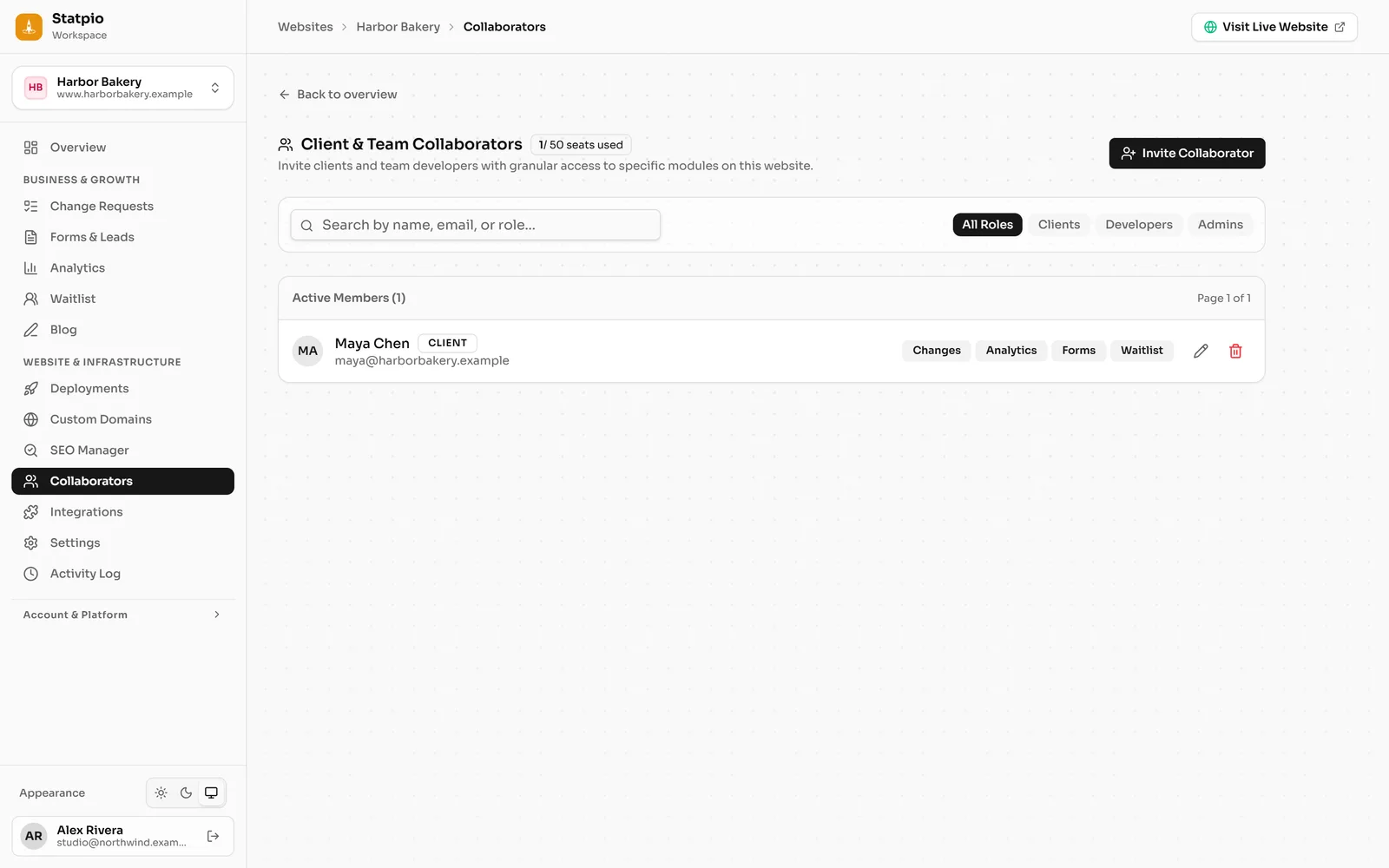 (opens the full-size screenshot)
Step 2: They sign in to your portal
Your client signs in on your portal, under your agency’s name and logo, and sees their website: its messages, visitors and blog, as their role allows.
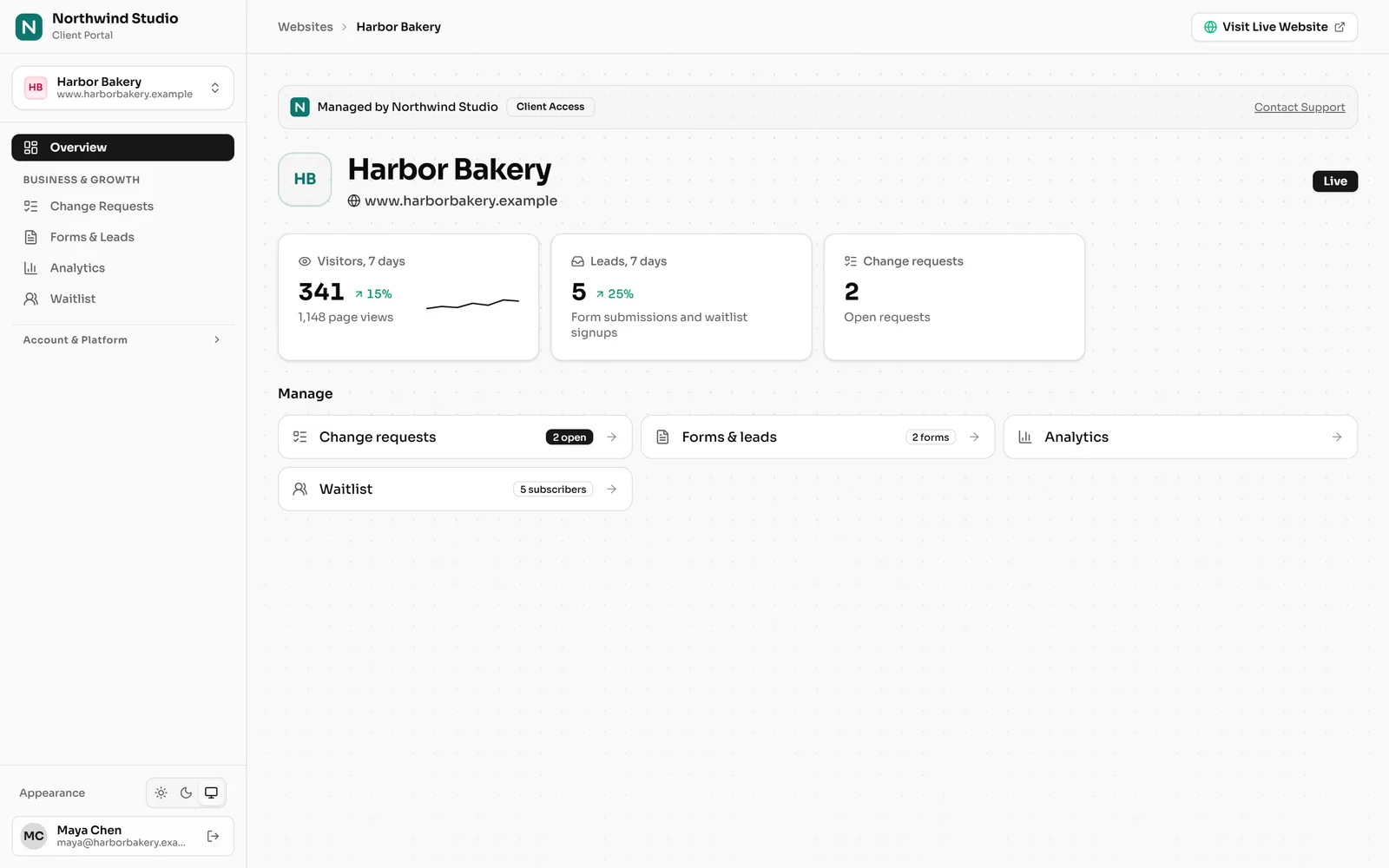 (opens the full-size screenshot)
Demo website, sample numbers. Step 3: Change requests
Instead of emails, clients ask for changes under Change Requests, with Request a Change. Each request shows where it stands: New, In Progress, Waiting for Client, Completed or Cancelled.
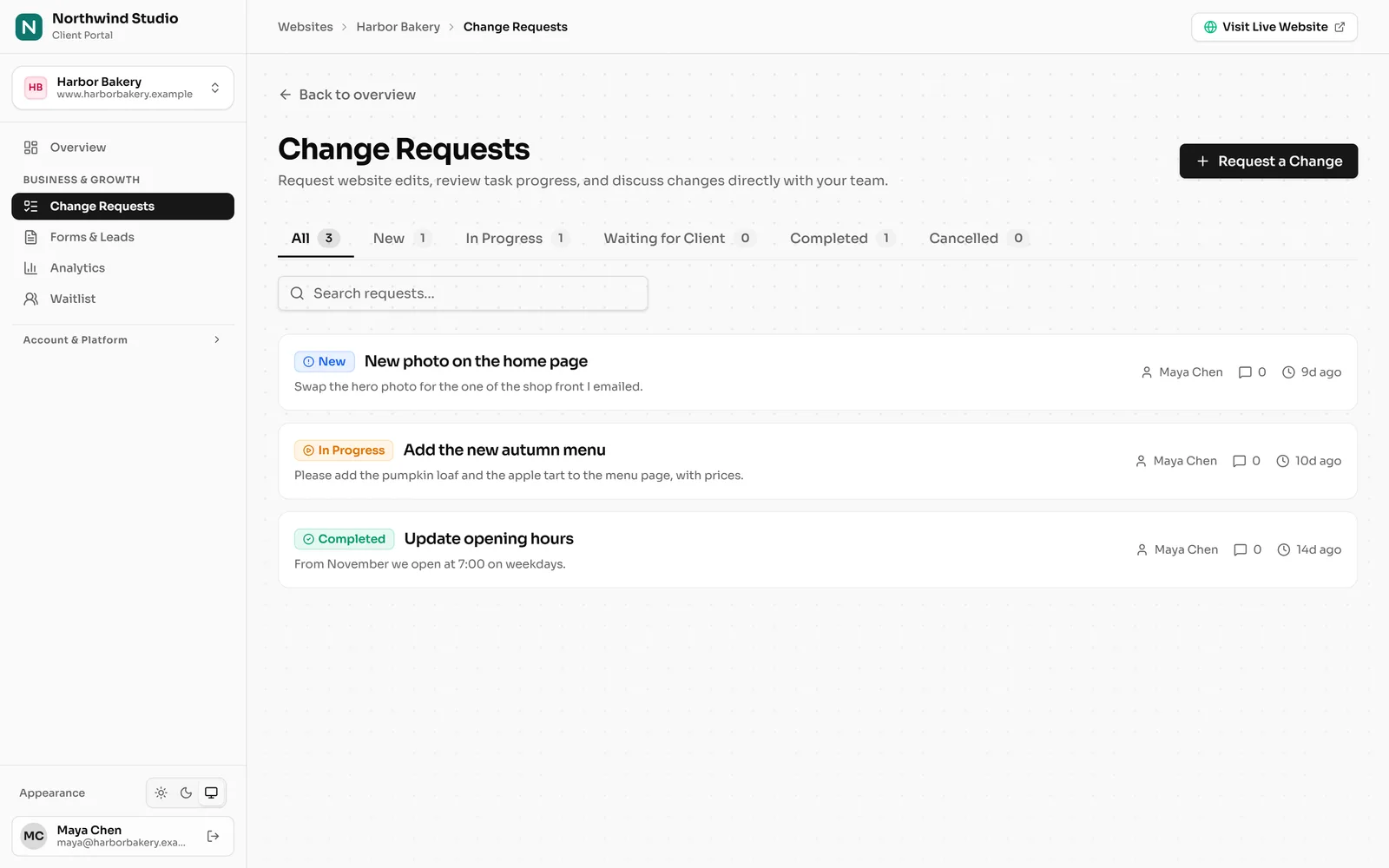 (opens the full-size screenshot)
Step 4: Talk it through in the request
Each request has its own page with a conversation, under Conversation & Discussion. You reply there and move the request along until it’s Completed; everyone involved is notified.
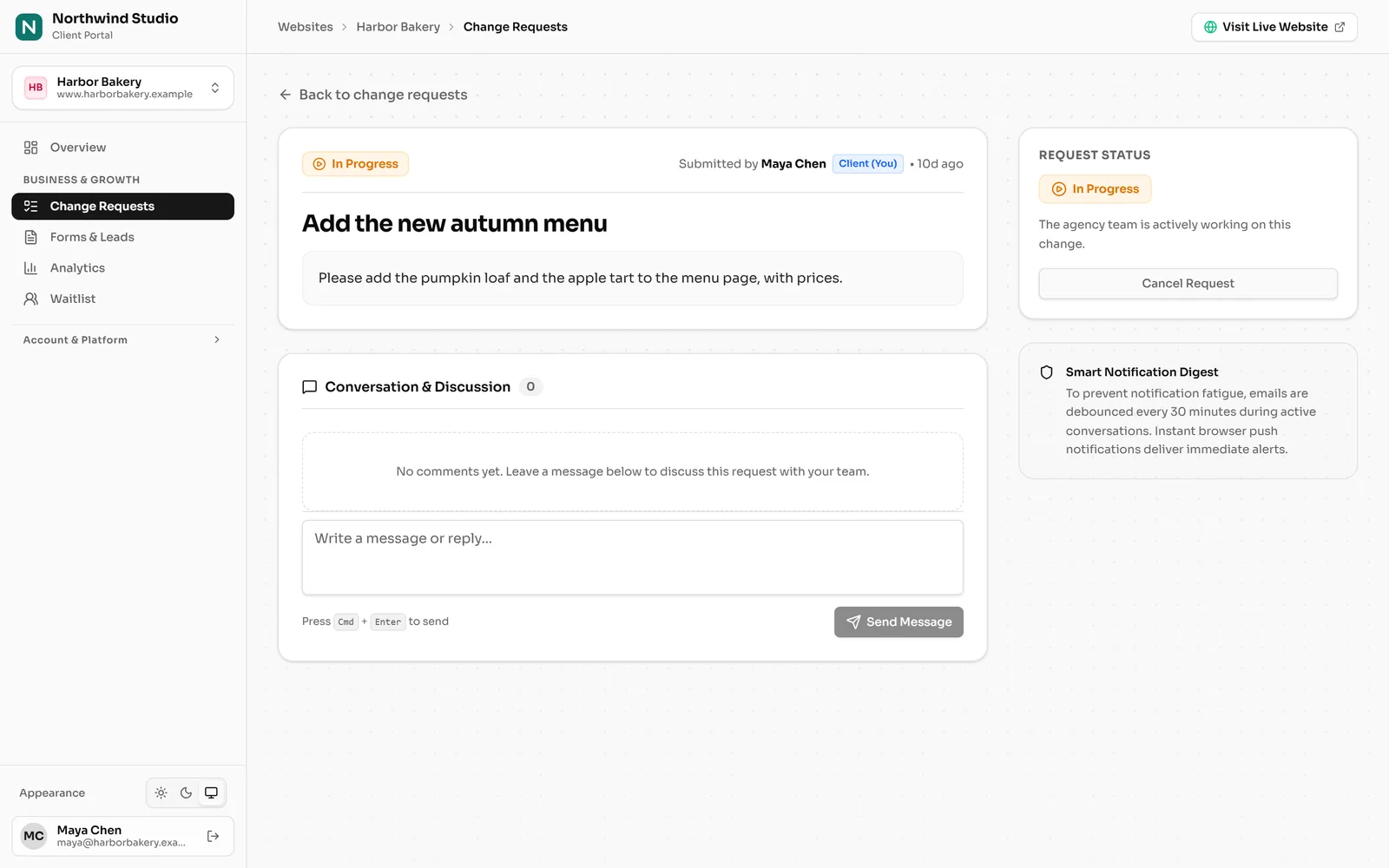 (opens the full-size screenshot)