
Add a contact form
Pick a ready-made form under Forms & Leads, change the questions in the editor while a preview shows the result, and save. Then choose where it appears: in the corner button on every page, on a page, or both. Every form also has its own link.
Step 1: Start from a ready-made form
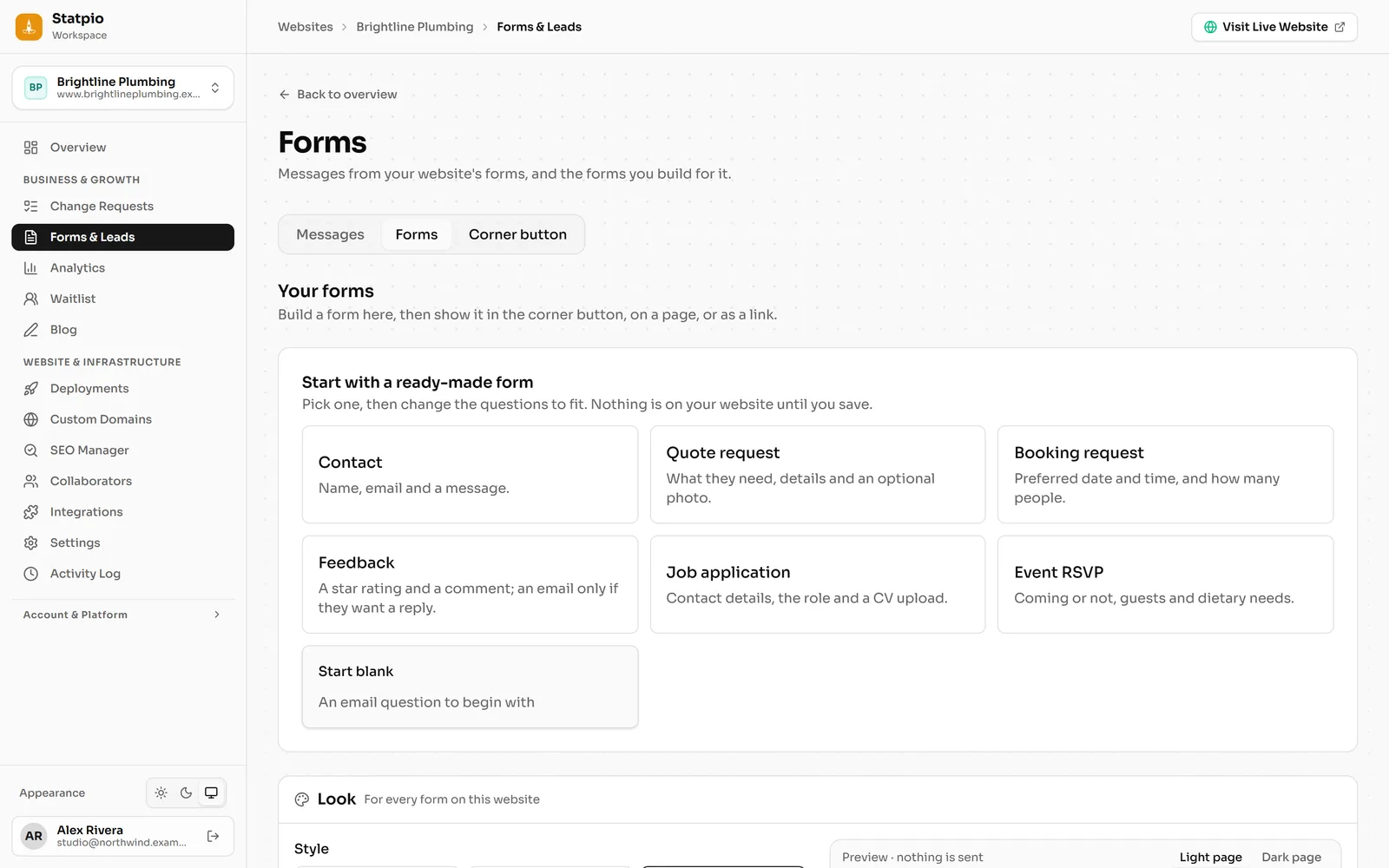
Open the website, then Forms & Leads and the Forms tab. Pick Contact, Quote request, Booking request, Feedback, Job application or Event RSVP, or Start blank. Once the website has a form, New form shows them again. Nothing is on your website until you save.
 (opens the full-size screenshot)
Step 2: Change the questions
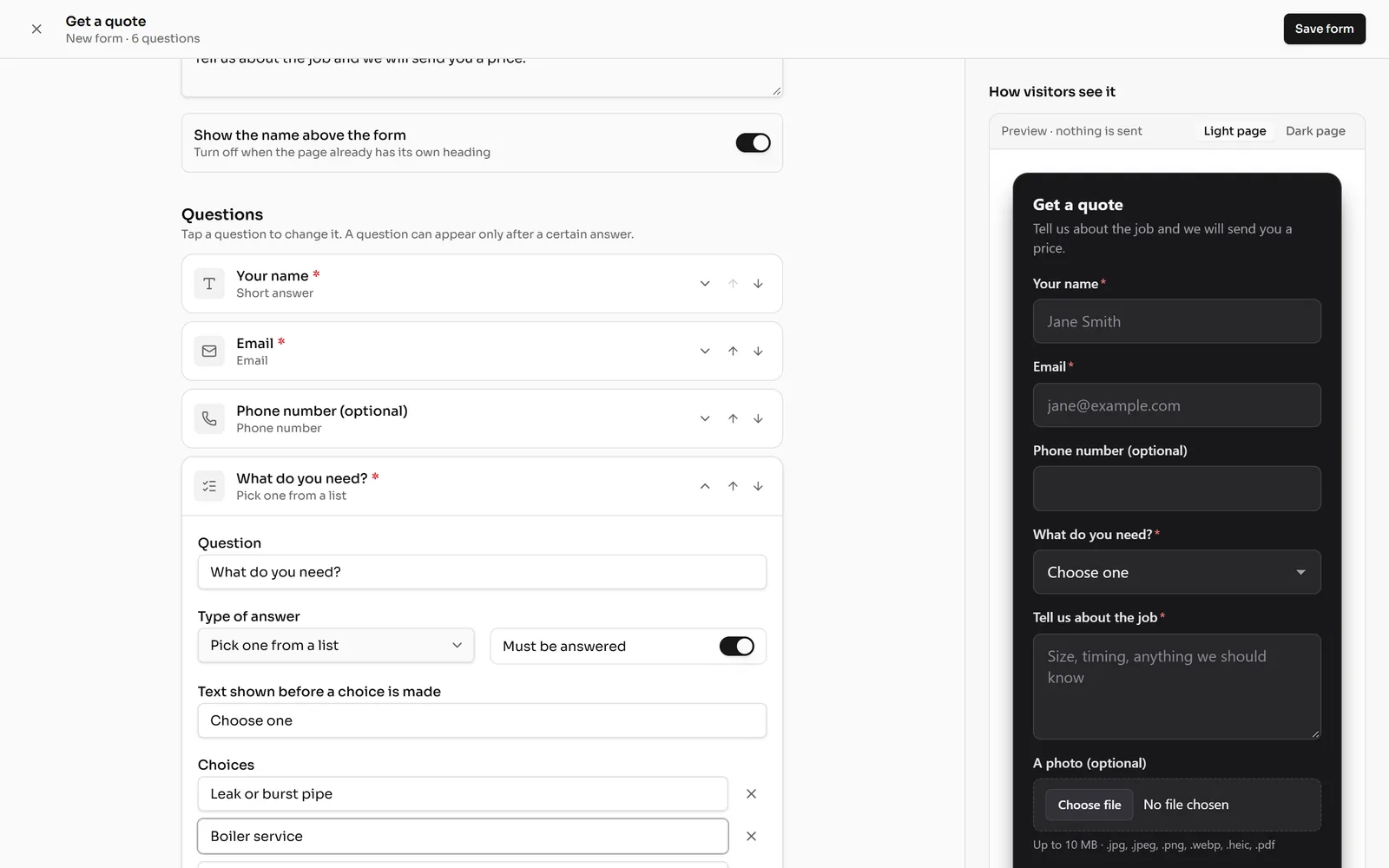
The editor shows your questions on the left and How visitors see it on the right. Open a question to change its wording and its Type of answer: short answer, long answer, email, phone number, pick one from a list, tick box, star rating, date or file upload. Switch on Must be answered when it’s required.
A new list question starts with example choices, “Option 1” and “Option 2”: replace them with your own. The form can’t be saved while they’re there, because visitors would see them.
 (opens the full-size screenshot)
Step 3: Put it on your website
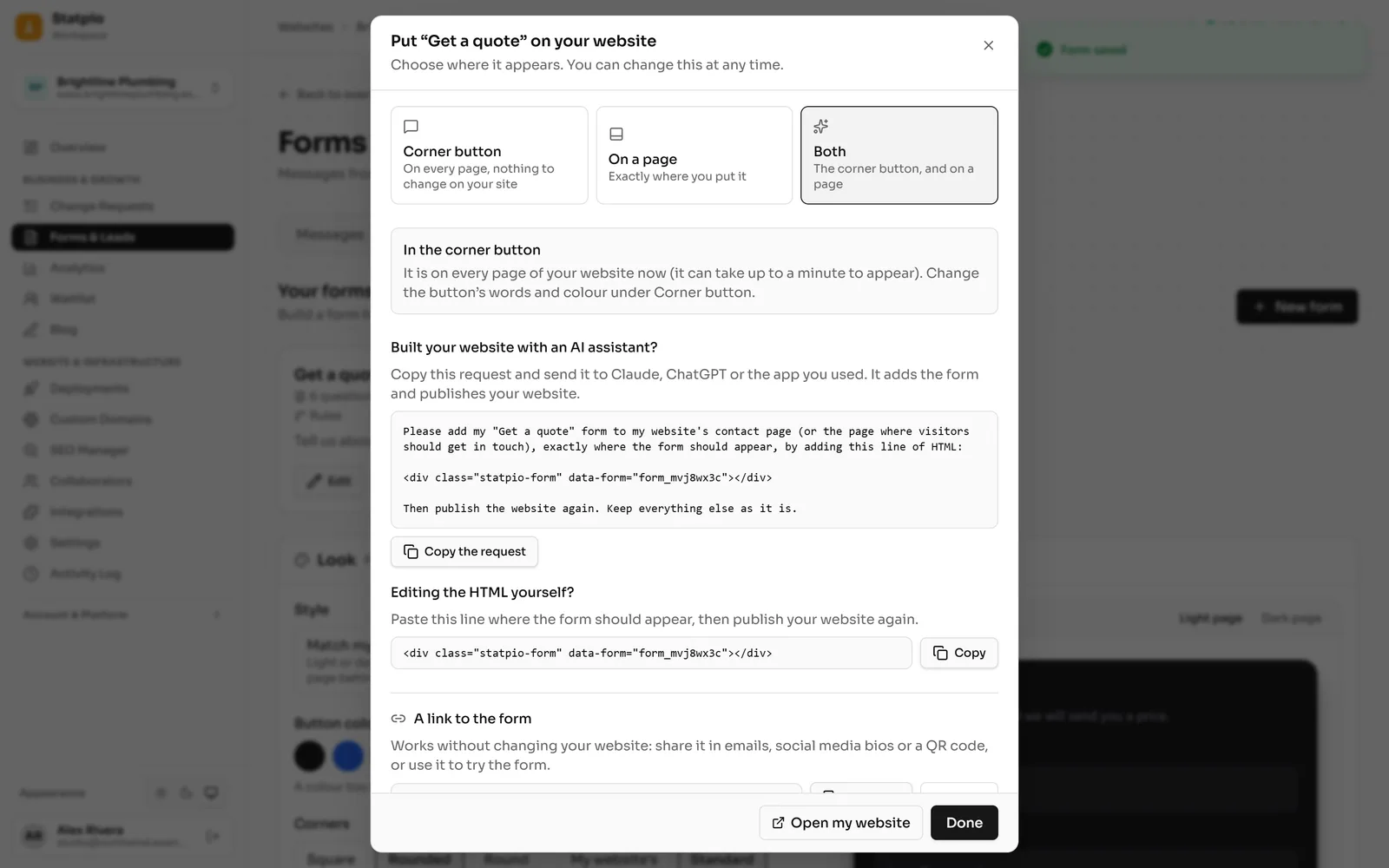
Click Save form (Save changes when you edit a form later). Then choose where it appears: in the Corner button on every page, On a page exactly where you want it, or Both.
For a page, Copy the request for the AI assistant that built your website, or copy the one line of HTML to paste yourself. Every form also has its own link to share in emails, social media bios or a QR code: Copy link, or Try it.
 (opens the full-size screenshot)
Step 4: Change it later
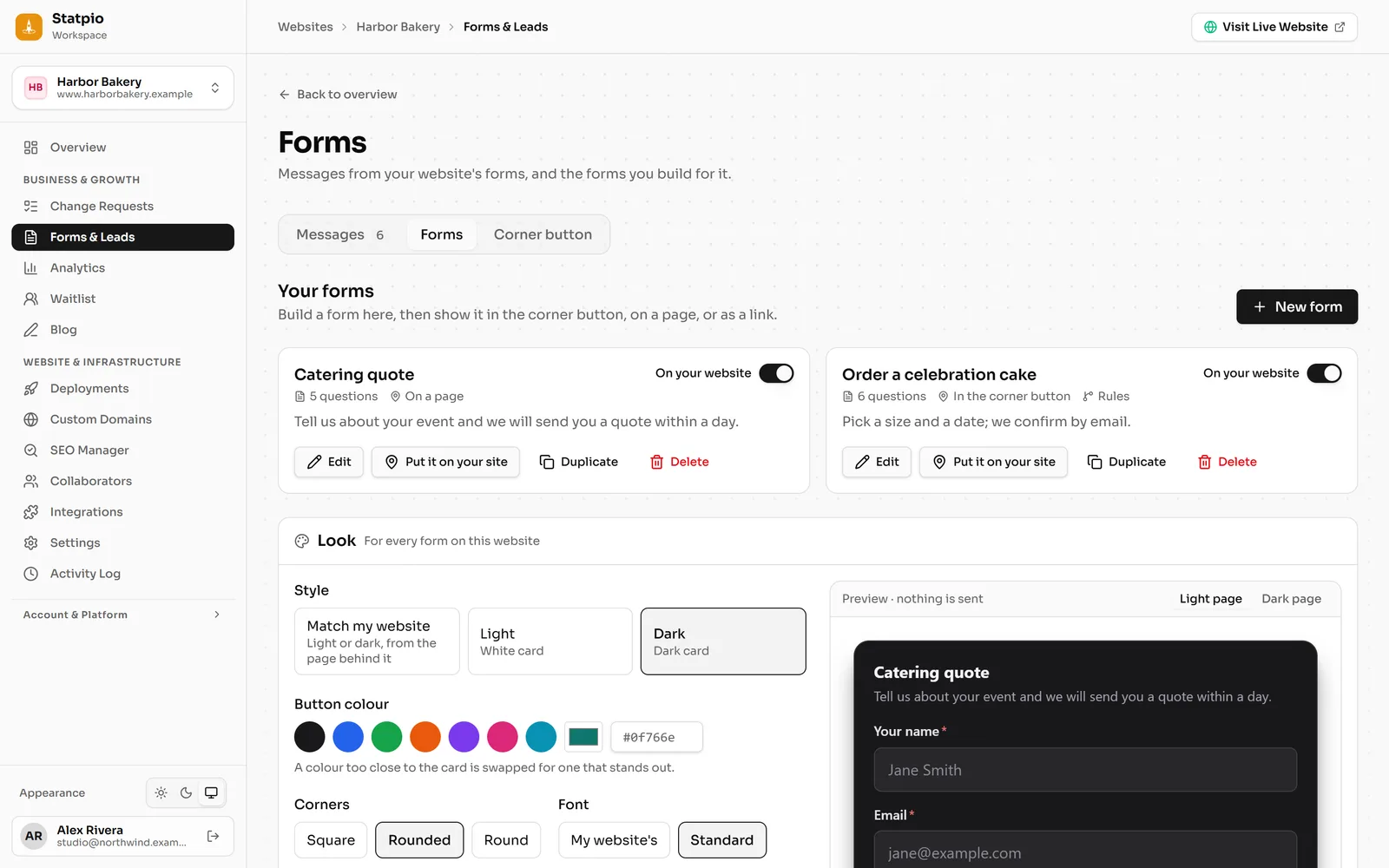
Your forms are listed on the Forms tab. Edit one, Duplicate it, switch it off with On your website, or click Put it on your site to change where it appears.
 (opens the full-size screenshot)