
Build or change your website with Claude or ChatGPT
Connect Statpio to Claude (or ChatGPT, Cursor and other AI apps), describe your business, and the assistant builds the website and publishes it to your account. Later, ask in the same chat for changes, photos or your latest messages.
Step 1: Connect Claude
On your Main Dashboard, the card Build your website with Claude has a Connect to Claude button: it opens Statpio in Claude’s connector directory. Approve the connection there; the card then says Claude is connected.
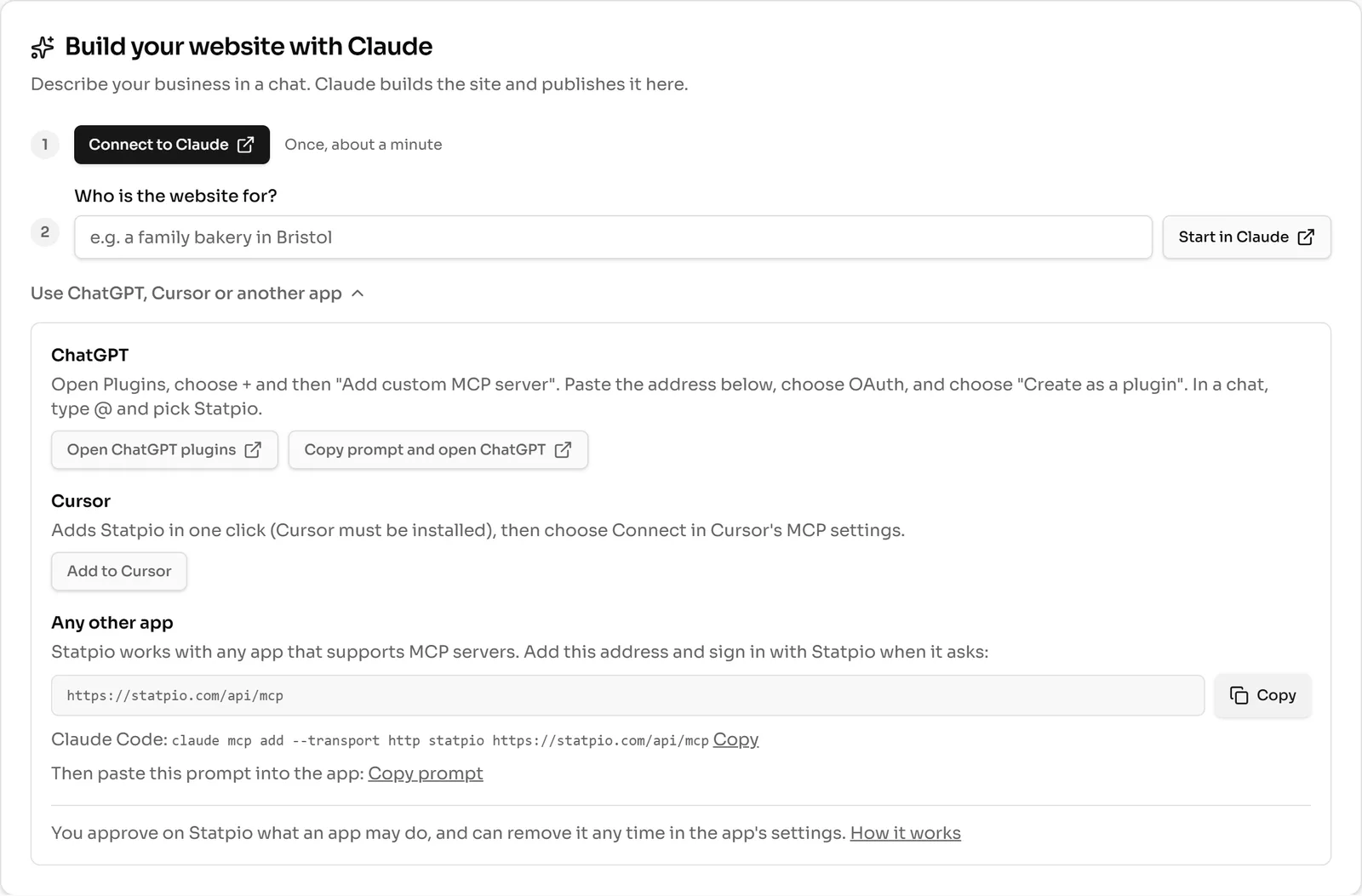 (opens the full-size screenshot)
Step 2: Describe your business
Write who the website is for in Who is the website for?, then click Start in Claude. Claude builds the website and publishes it to your Statpio account; you find it under All Websites.
Step 3: Change it by asking
Back in the chat, ask for changes (“add our new opening hours”), send your own photos with the upload link it gives you, or ask how many visitors and messages the site had. Every change is a new version you can undo.
Step 4: Using ChatGPT, Cursor or another app?
Open Use ChatGPT, Cursor or another app on the same card for their steps, or see the set-up for every app, including Claude Code, Cursor, VS Code and Codex. Any AI app that takes a custom MCP connector can use the address
https://statpio.com/api/mcp.